

App To Help Manage AI Chats And Files With AI Agents
A useful app to help manage AI chats and files is a unified workspace that keeps conversations, uploaded documents, summaries, drafts, images, and routed agent outputs together instead of scattering them across separate tools. The strongest version of this workspace routes chat, writing, image, document, and detection tasks to specialized agents while keeping the user experience simple.
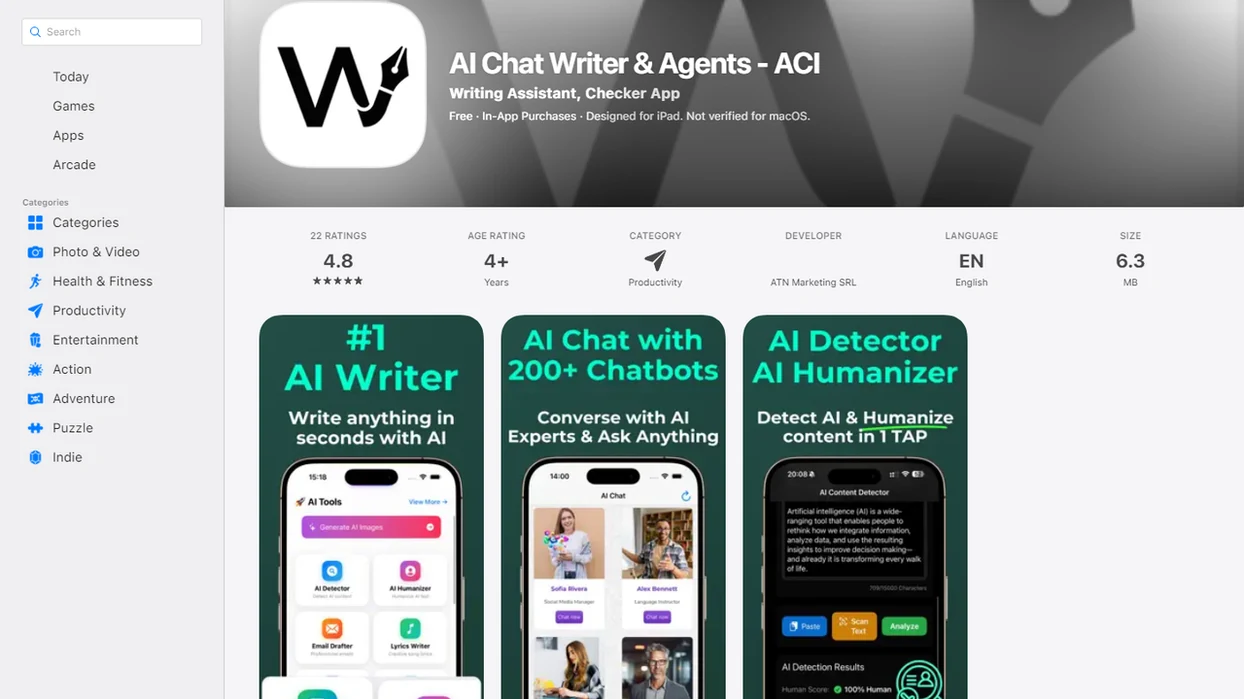
> Definition: AIACI is an AI agent app that routes chat, writing, image, document, and detection tasks to specialized agents for mobile users and teams.
- Use an AI chat file manager when your prompts, PDFs, drafts, images, and AI outputs are spread across too many apps.
- A strong AI app for chats and files should preserve context, file history, permissions, and output lineage across agents.
- A mobile AI workspace is most useful when it lets you capture files on the go, continue conversations across devices, and route work to specialized agents.
How these apps look
Side-by-side captures of the compared products. Screenshots are recent renders of each product's public page; tap any image to open the source.
What an AI chat file manager should include
An AI chat file manager is a workspace for AI conversations, uploaded files, summaries, drafts, images, and analysis outputs. It should help you find the work later, not just generate another answer.
A normal chat client handles messages. A serious AI chat file manager handles the messy work pile too: meeting notes, a half-written brief, screenshots, and a support ticket. The difference shows up when you need to trace one answer back to the PDF, prompt, and revision that produced it.
An AI agent network front door differs from a generic chatbot because it sends work to the right type of agent instead of leaving every task inside one loose prompt box. A good AI agent network platform routes tasks to specialized agents for chat, writing, image generation, document analysis, and detection, with the web tools rather than a pile of disconnected tools.
Five facts about an AI chat file manager for real work
- One searchable workspace matters. An AI chat file manager should unify chats, files, prompts, summaries, images, and agent outputs so users do not have to remember which app created which result.
- Specialized routing is different from basic chat. The workspace should route tasks to chat, writing, image, document, and detection agents when those agents fit the job better than a general conversation.
- Document management cannot be an afterthought. Versioning, tagging, permissions, and history help teams understand which file an output came from.
- Security controls are part of the product. Encryption, access controls, audit trails, retention settings, and governance options matter once business documents enter the system.
- Context should persist across sessions. The useful part is carrying the same file and conversation history from a document question into a writing draft or detection check.
Microsoft and LinkedIn’s 2024 Work Trend Index found that 75% of knowledge workers use AI at work and 78% bring their own AI tools to work, a pattern that explains why unmanaged AI work gets messy fast (https://www.microsoft.com/en-us/worklab/work-trend-index/ai-at-work-is-here-now-comes-the-hard-part).
Why scattered AI chats and files slow mobile professionals down
Why do scattered AI chats and files slow mobile professionals down? They split prompts, source files, approvals, screenshots, drafts, and final outputs across tools that do not remember each other.
The phone makes this worse and better at the same time. A consultant may capture a receipt image, paste client notes into one app, ask a PDF question in another, then rewrite the proposal intro on a train. By Thursday, the actual source of the final paragraph is guesswork.
Knowledge workers have been estimated to spend 9.3 hours per week searching and gathering information across systems. A 2023 survey also found that 55% of global knowledge workers used two or more generative AI tools regularly. That is a lot of context leakage.
The pocket check is real.
For mobile professionals, one workspace is often easier than separate AI tools because files, prompts, and outputs stay tied to the same project thread.
How an AI app for chats and files works behind the scenes
An AI app for chats and files works by storing uploads, indexing their contents, keeping conversation context, and attaching metadata to each output. In plain terms, the app needs to remember what you uploaded, what you asked, and what the AI produced.
When you drag a PDF into a document agent and wait for the page count to finish loading, the system usually extracts text, creates file references, and builds a searchable record. Larger documents or image generation jobs may run on server-side infrastructure because phones are not built for every heavy model task.
Agent routing adds another layer. The workspace reads the user’s request, classifies the task, and sends it to a specialized agent when useful. A contract summary may go to a document agent. A client email may move to a writing agent. The important record is lineage: original file, prompt, agent output, user revision, and final share.
Good agent routing is practical plumbing, not agentic magic.
Before You Start Using an AI Chat File Manager
Before you start using an AI chat file manager, make a small plan for what will enter the workspace and who is allowed to touch it. The goal is to avoid creating a cleaner-looking version of the same scattered mess.
- Inventory the work you want organized: active chats, PDFs, screenshots, meeting notes, drafts, generated images, summaries, exports, and any final outputs already sitting in folders or message threads.
- Check file support before upload day, including accepted formats, page limits, image handling, cloud-drive imports, and maximum upload sizes for your plan.
- Set access rules for shared files and projects so viewers, editors, exporters, and deleters are clear before teammates begin routing work through agents.
- Remove sensitive material that should not enter the system yet, especially regulated, confidential, or client-controlled documents that need legal, security, or compliance review first.
- Choose naming habits for projects, clients, tags, draft versions, and revisions so a final proposal does not end up beside six files named “new summary.”
This prep takes a few minutes, but it makes the first real workflow much easier to trust.
How to use a mobile AI workspace for chats, files, and agent outputs
A mobile AI workspace works best when you treat it like a project desk, not a blank chat screen. Start with the source material, then route the work.
- Upload or capture files from your phone, cloud drive, camera roll, or shared project folder.
- Organize the work with tags, projects, folders, or client names before the thread grows.
- Ask questions or assign work to the right agent, such as document review, drafting, image creation, or detection.
- Review summaries, drafts, detections, or images against the original file before using them.
- Save, share, or revise outputs inside the same workspace so context stays attached.
A thumb hovering over agent tiles is a small moment, but it matters. The tile you pick shapes the next output. For iOS-specific patterns, an AI agent app for iPhone should make capture, routing, and review usable from a small screen.
Best AIACI workflows for chat, writing, image, document, and detection agents
The strongest agent workflows match a task to a specialized agent while keeping the files and outputs in one shared workspace. The value is not more buttons. It is cleaner task routing.
- Chat agent: Use it for brainstorming, Q&A, follow-up conversations, and quick sense-making when the task is still loose.
- Writing agent: Use it for emails, proposals, briefs, summaries, and structured drafts that need a clear audience and format.
- Image agent: Use it for visual concepts, creative assets, prompt variations, and generated image outputs. The export folder filling with previews can get noisy, so naming helps.
- Document agent: Use it for PDFs, reports, uploaded files, and clause-level questions. Search box filled with clause numbers, then verify the answer.
- Detection agent: Use it for generated-content checks, risk signals, and verification-oriented review steps.
For teams, routing by workflow is usually better than routing by favorite model because the job determines the needed context.
AI chat file manager features to compare before choosing an app
Compare an AI chat file manager by how well it preserves work, not by how long the feature list looks. The right AI app for chats and files should make search, routing, review, and export feel ordinary.
| Feature | Why it matters | What to look for |
|---|---|---|
| Search | Finds old chats, files, and outputs | Project-level and file-level search |
| Tagging | Keeps mixed work organized | Tags, folders, clients, or topics |
| File uploads | Supports real source material | PDFs, docs, images, text, and size limits |
| Context sync | Reduces repeat prompting | Cross-device history and session memory |
| Agent routing | Sends work to the right tool | Chat, writing, image, document, and detection agents |
| Permissions | Protects shared files | Role-based access and sharing controls |
| Audit/history | Tracks output lineage | Prompt, file, revision, and export history |
| Mobile app | Supports capture on the go | iOS or Android with usable upload flows |
| Export options | Prevents lock-in | Download, copy, share, and project export |
Privacy-by-design and local storage claims should be checked carefully. Treat them as evaluation points, not automatic guarantees. Android users should also compare mobile capture in an AI agent app for Android.
Security and governance requirements for an AI app for chats and files
Security requirements rise when an AI app stores business files, routed agent outputs, and review history in one place. Casual chat risk is one thing. A workspace full of client PDFs and draft decisions is another.
Look for access controls, encryption, audit trails, retention settings, export controls, and data residency options where they apply. Team admins also need clear rules for who can upload, share, delete, and reuse files across agents. A citation list open below a draft is useful only if the source files were allowed there in the first place.
Gartner reported in 2023 that 60% of organizations lacked a centralized strategy for managing GenAI models, tools, and data. Centralization can help, but only when governance is actually configured. Otherwise, the same mess has a nicer dashboard.
For regulated or sensitive work, involve legal, security, or compliance specialists before uploading controlled documents.
Evidence Behind AI Workspace and File-Management Claims
The evidence for AI workspace claims is strongest when each statistic is tied to its source, audience, and limits. Adoption surveys explain why scattered AI work is common, but they do not prove that every team needs the same file-management pattern.
Use the numbers as directional context, then check whether they fit your work.
- Name the research source when citing AI adoption. Microsoft and LinkedIn’s Work Trend Index is useful for knowledge-worker behavior, while Gartner or McKinsey research may speak more to enterprise strategy and productivity.
- Separate search-time claims from AI claims. Estimates about hours lost searching across workplace systems usually come from digital workplace or productivity research, not from AI workspace testing.
- Tie governance risk to recognized frameworks or vendor security documentation. The NIST AI Risk Management Framework is one reference point for mapping, measuring, and managing AI risk source.
- State the boundary of each figure: region, job type, survey year, sample, and whether respondents were self-reporting.
- Avoid overgeneralizing survey results. A sales team, legal department, and solo consultant may all need different controls.
Common mistakes when choosing an AI chat file manager
The first mistake is treating the tool as just another chat client. If it cannot connect conversations to files, drafts, images, summaries, and review history, it is not really an AI chat file manager.
Another mistake is assuming one strong LLM removes the need for a workspace. It does not. People still juggle PDFs, screenshots, meeting notes, proposal drafts, and outputs from different tools. The model answers the prompt; the workspace preserves the work.
Mobile capture also gets overlooked. Someone staring at five nearly identical chat app icons on an iPhone home screen does not need another isolated box. They need cross-device context that survives the commute, the meeting, and the late edit.
Do not ignore permissions, history, and output lineage. Simple plugins may extend a chatbot, but coordinated agent routing should connect task selection, file context, and review steps. The detector score screenshot in chat still needs a human to read the flagged sentence.
Limitations
Centralizing AI chats and files can reduce chaos, but it introduces real tradeoffs. Review these limits before moving important work into one workspace.
- A single workspace can become a single point of failure if security, uptime, or account recovery is weak.
- Agent routing quality depends on the underlying models, available tools, file parsing, and task instructions.
- Sensitive decisions still need human review. AI summaries and detections are support tools, not final authority.
- Large files, heavy document analysis, and image generation may require server-side processing.
- Mobile workflows can be constrained by network latency, upload size, device performance, and battery life.
- Cross-platform context sync can break if integrations, APIs, or vendor policies change.
- Centralization can create governance risk if permissions, retention rules, and sharing settings are poorly managed.
- Privacy claims vary by vendor, plan, region, and configuration. Read the policy before uploading confidential files.
A unified workspace is useful only when the review step remains visible.
FAQ
What is an AI chat file manager?
An AI chat file manager is a workspace that keeps AI conversations, uploaded files, summaries, drafts, and outputs organized together. It differs from a normal chatbot because it manages files, context, and output history.
Can AI apps organize PDF files?
Yes, many AI apps can upload PDFs, summarize them, tag them, and answer questions about their contents. Accuracy depends on file quality, page limits, text extraction, and the app’s document analysis tools.
What is the best AI workspace app for iPhone?
The best AI workspace app for iPhone is usually one that supports mobile capture, file uploads, saved context, search, and agent routing. AIACI and other mobile-first AI workspaces should be compared against those needs.
Do AI chat apps save conversations?
Many AI chat apps save conversation history for search, syncing, and continuity across sessions. Users should check settings for deletion, export, retention, and whether history can be disabled.
Can multiple AI agents use the same files?
Yes, in a shared workspace, multiple agents can often work from the same uploaded files and conversation context. For example, a document agent can summarize a PDF before a writing agent drafts from that summary.
Are AI file managers secure for business documents?
They can be secure enough for some business use when they include encryption, access controls, audit trails, retention settings, and clear vendor policies. Teams should review security documentation before uploading sensitive documents.
What file types can AI agents read?
Common supported file types include PDFs, text files, images, spreadsheets, and word-processing documents. Exact support depends on the app, plan, file size, and parsing method.
Who needs a mobile AI workspace?
A mobile AI workspace fits professionals and teams that manage prompts, files, drafts, screenshots, and AI outputs across devices. It is especially useful when work starts on a phone but needs review later on a desktop.