

How to Analyze PDFs on iPhone
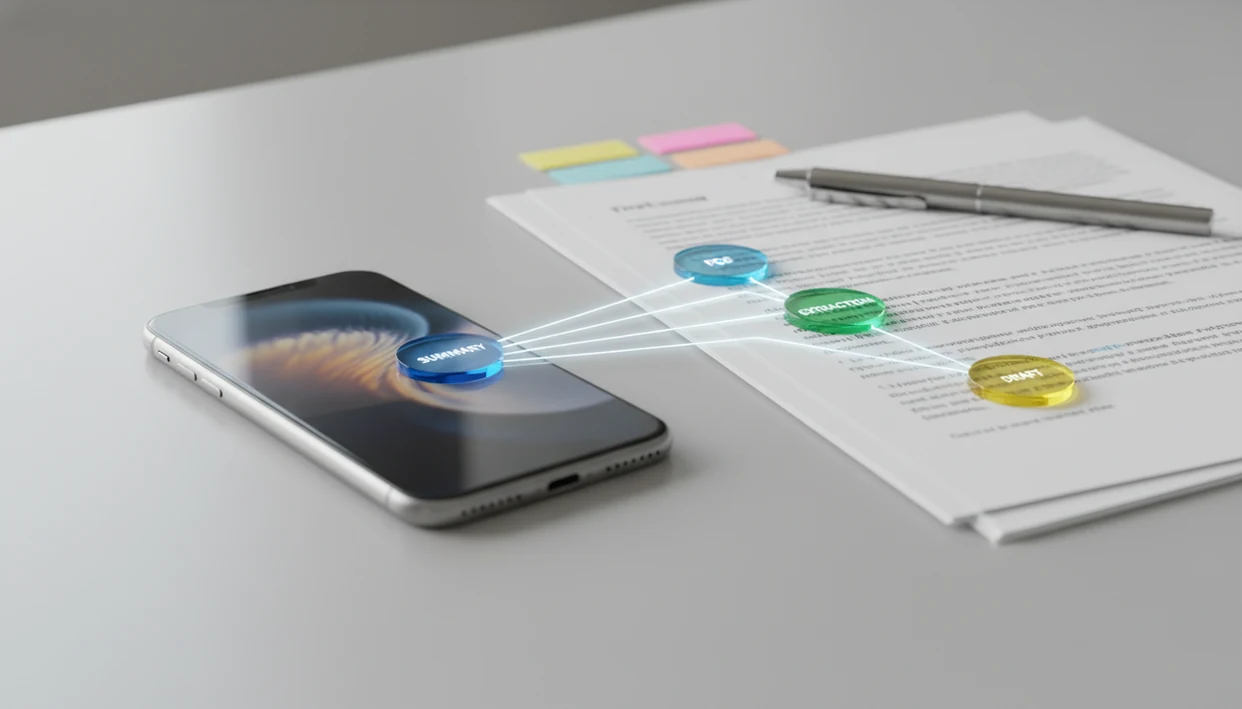
The PDF is already on the phone: a Mail attachment, a Safari download, a WhatsApp file, a scan sitting crooked in Files. Opening it is easy. Getting a usable summary, a risk list, or a reply draft is the actual job.
Quick answer: To analyze a PDF on iPhone, import it from Files, Mail, Safari, or the Share Sheet into an AI document workflow, then ask for a short summary before deeper questions. Treat the output as a draft. Check page references, numbers, and names against the original before you send or sign anything.
What AI PDF analysis on iPhone means
Definition: AI PDF analysis on iPhone means sending a PDF from iOS into a system that can summarize, extract, classify, answer questions, and turn the file into notes or drafts. It is different from simply opening the file.
Files and Books can store PDFs, search text, share files, and support markup. They do not explain a clause, a table, or a finding. The handoff starts when you share or upload the PDF into a workflow that keeps the file as the source of truth.
Why this workflow matters on a phone
Pew reported that 85% of U.S. adults owned a smartphone in 2023, rising to 96% among adults aged 18–29 (Pew Research Center). Most of that group already meets documents on a small screen first.
The same year, 18% of U.S. adults had used ChatGPT, rising to 32% among adults under 30 (Pew). Familiarity with chat does not make a vague “analyze this” prompt safe. McKinsey estimated in 2023 that generative AI could add $2.6 trillion to $4.4 trillion annually to the global economy, with major impact in knowledge work such as drafting and summarization (McKinsey). The value only holds if someone still checks the PDF.
How AI PDF analysis works on iPhone
The mechanism is extraction first, response second. Readable text PDFs can be pulled directly. Scanned pages, photos, and image-heavy reports need OCR, which converts visible letters into text. The system then chunks the document, retrieves the relevant passages, and answers from those passages rather than from memory alone.
- Import the PDF from Files, Mail, Safari, WhatsApp, or cloud storage.
- Extract embedded text, or run OCR when the pages are images.
- Chunk and index the content so specific sections can be retrieved.
- Ask for a short summary before deeper questions.
- Generate answers, tables, or drafts from the retrieved passages.
- Review page references, quotes, dates, and numbers against the original.
Short files may stay partly on-device. Long PDFs, OCR, and multi-step routing usually need a server. Apple reported more than 2 million App Store apps as of 2020 (Apple), which is why the Share Sheet feels crowded. Pick a tool that can keep the PDF attached to the answer.
A simple iPhone workflow
| iPhone source | Best first ask | Useful output |
|---|---|---|
| Files or iCloud Drive | 5-bullet summary | Notes or study guide |
| Mail attachment | Obligations and deadlines | Reply draft or task list |
| Safari download | Document type and key claims | Research brief |
| WhatsApp file | Decisions and next actions | Meeting follow-up |
| Google Drive or Dropbox | Compare sections and tables | Report outline |
Best PDF questions to ask on iOS
- “Summarize this in 5 bullets for a busy manager.”
- “List action items, owners, and deadlines.”
- “What are the main risks in this contract?”
- “Explain the findings without jargon.”
- “Extract invoice numbers, dates, vendors, totals, and payment terms.”
- “Turn this into an email draft.”
- “Compare the conclusion with the data tables.”
For document-chat routing patterns, see the ChatPDF alternative with agents guide. When the PDF itself should stay the source of truth, the document analysis agent write-up is the closer match.
Common mistakes
- The built-in app mistake. Books and Files are readers and organizers, not analyzers.
- The bad scan mistake. A blurry or rotated page produces weak OCR and invented numbers.
- The no-source-check mistake. Users trust a summary without checking dates, names, or clauses.
- The one-chatbot mistake. One generic chat may mix summary, draft, and review less cleanly than a routed workflow.
- The privacy mistake. People upload client or regulated files before checking retention and permission.
For anyone analyzing a PDF on iPhone, start with a 5-bullet summary, then ask one targeted question. Compare every number and quoted clause with the original file before you act.
Review checklist
- Page references match the original PDF.
- Numbers, totals, dates, percentages, and formulas are correct.
- Names, vendors, and roles are accurate.
- Obligations, deadlines, and exclusions are not softened.
- Quoted clauses match the PDF word for word.
- Missing sections are named, not skipped.
Gartner predicted that by 2026, 80% of enterprises would have used generative AI APIs or deployed generative AI-enabled applications in production. More document use means more need for that last check. Related: how to choose an AI PDF analysis tool.
Limitations
Key caveat: treat the output as a draft layer, not final authority, especially when money, rights, health, grades, or a client decision is involved.
- Long PDFs, OCR, and agent routing often need internet access.
- Scanned, handwritten, rotated, or image-heavy files can produce incomplete extraction.
- Password-protected or restricted PDFs may not upload or parse.
- Models can hallucinate, miss context, or overstate confidence.
- Sensitive uploads create privacy and permission risk.
- Speak Screen can read text aloud. That is not the same as analysis.
FAQ
Can iPhone analyze PDFs?
iPhone can open, store, search, share, and mark up PDFs with built-in apps. AI analysis requires an AI app or agent workflow that can process the document.
How do I summarize a PDF on iPhone?
Open the PDF in Files, Mail, Safari, WhatsApp, or cloud storage, then share or upload it into an AI PDF tool. Ask for a short summary, review it against the original, and export the result as notes or a draft.
Can I ask questions about a PDF on iPhone?
Yes, after the PDF is uploaded or shared into an AI tool, you can ask chat-style questions about its content. Specific questions usually work better than broad prompts.
Does Apple Books summarize PDFs?
Apple Books is mainly for reading, organizing, searching, and marking up PDFs. It does not function as a full AI PDF summarizer.
Can iPhone read PDFs aloud?
Yes, iPhone accessibility settings such as Spoken Content and Speak Screen can read visible text aloud. Audio reading is different from AI analysis, which summarizes, extracts, and answers questions.
Are scanned PDFs supported on iPhone?
Scanned PDFs may work if the app can run OCR on the images. Scan quality affects whether summaries, answers, and extracted tables are accurate.
Is AI PDF analysis private?
Privacy depends on the app, upload method, server processing, retention settings, and document sensitivity. Check the policy and permissions before uploading private, regulated, or client documents.
Can AI extract tables from a PDF on iPhone?
AI can often extract tables from PDFs on iPhone, especially when the table text is readable. Verify numbers, headers, merged cells, row labels, and formatting before using the result.
Use this as a starting point
Locate the file, share it into an analysis workflow, ask for a short summary, then verify the parts that matter. Browse more document and agent guides from the guide index.